
How to Install Yuzu Emulator on Windows 10 & 11 (Step-by-Step Guide)
Yuzu Emulator of emulation technology allows PC users to run modern, complex console titles directly on their desktop computers. In particular, Among Nintendo Switch emulators, Yuzu stands out as one of the most remarkable technical achievements in gaming history. Built from the ground up to interpret ARM64 architecture and translate Switch graphics calls to modern PC graphics APIs, Emulator for PC brings handheld and home console titles to computer displays with enhanced resolution, customizable frame rates, and extensive control configurations.
To help users get started, this comprehensive operational blueprint covers every technical aspect of setting up yuzu pc on Windows PCs: hardware requirements, directory structures, key decryption, firmware integration, shader management, GPU tuning, and advanced troubleshooting.
Important 2026 Context & Emulation Fundamentals
Before diving into setup steps, however, it is essential to understand the modern ecosystem surrounding Yuzu:
- Archived Status: Development of the original Yuzu windows project officially ceased in March 2024. Consequently, there are no official “2026 releases” or active upstream updates coming from the original development team.
- Build Integrity: Any installer or build distributed today is an archived build or community-maintained fork. So, Always ensure you source packages from trusted archives to avoid malicious software or altered binaries.
- Legal & Technical Boundaries: yuzu emulador pc games download does not ship with copyrighted console system software, digital rights keys, or game files. To run games legally and functionally, users must supply their own console keys (prod.keys), optional system firmware files, and legally dumped game files (
.xcior.nsp).
Windows Hardware & System Requirements
Generally, running high-level console emulation requires substantial computing power. Unlike native PC games, an emulator must continuously translate console hardware instructions (specifically ARM CPU instructions and Switch GPU routines) into x86-64 code that your PC processor and graphics card can execute in real time.
Below is the detailed hardware requirement matrix for Windows 10 and Windows 11 systems:
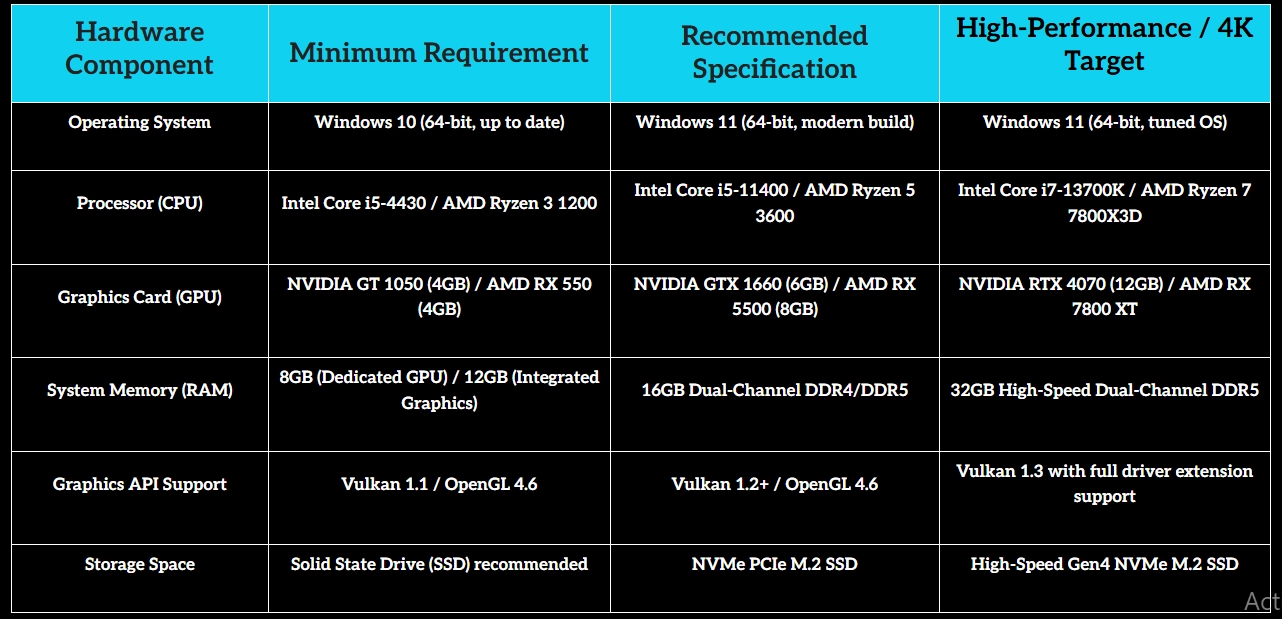
Key Hardware Insights:
- CPU Single-Core Performance: Emulation performance depends heavily on single-thread clock speed and Instructions Per Clock (IPC). Therefore, a CPU with strong single-core performance will outperform a processor with many slow cores.
- Instruction Sets: Additionally, processors featuring modern instruction sets like FMA, AVX2, and AVX-512 deliver significantly smoother CPU emulation handling.
- RAM Bandwidth & Capacity: In general, 16GB is considered the practical sweet spot. Furthermore, Integrated graphics (iGPUs) share system RAM for VRAM allocations, making 16GB+ dual-channel memory mandatory for systems without dedicated graphics cards.
Preparation & Pre-Installation Checklist
Before proceeding, to guarantee a clean installation process without errors, gather all required prerequisites before extracting software archives.
Required File Components Checklist:
- [ ] Yuzu Windows Build: A trusted archived package (usually provided as a .zip or
.7zfile). - [ ] Decryption Keys (
prod.keys): Dumped from your physical Nintendo Switch console.title.keyscan also be present, thoughprod.keyshandles standard game decryption. - [ ] Console System Firmware: Extracted system files from your Switch console (required for games using system fonts, Mii data, or specific system services).
- [ ] Game Files & Dumps: Game images saved in
.xcior.nspformat, stored in an organized local folder. - [ ] Updated GPU Drivers: The latest drivers from NVIDIA, AMD, or Intel to ensure proper Vulkan API extension compliance.
Step-by-Step Installation Process on Windows
For this reason, Follow these sequential steps to establish a clean installation environment on Windows 10 or 11.
+-----------------------------------------------------------------+
|                    YUZU DIRECTORY STRUCTURE                      |
+-----------------------------------------------------------------+
| C:\Emulators\Yuzu\                                              |
| ├── yuzu.exe                      <-- Main Executable           |
| ├── user\                         <-- Local User Data Folder     |
| │   ├── keys\                     <-- Stores prod.keys          |
| │   │   └── prod.keys                                           |
| │   ├── nand\                     <-- Stores System Firmware    |
| │   │   └── system\Contents\registered\                         |
| │   ├── sdmc\                     <-- Installed Updates & DLCs  |
| │   └── shader\                   <-- Shader Cache Storage      |
+-----------------------------------------------------------------+
Step 1: Folder Creation & Archive Extraction
- First, create a dedicated directory on your fastest storage drive (preferably an SSD).
- Example Path:
C:\Emulators\Yuzu\
- Example Path:
- Furthermore, avoid installing in system-protected folders like
C:\Program Files\orC:\Program Files (x86)\, as Windows administrative permission restrictions can prevent yuzu pc download from writing configuration changes or saving shader caches. - Next, open your downloaded archive (
.zipor.7z). - Extract all files into your created directory using Windows File Explorer, 7-Zip, or WinRAR.
- Crucial Rule: Once completed, Never launch Yuzu emulator pc games download from directly inside a compressed ZIP folder. As a result, running executables within unextracted archives causes file loss and prevents data saving.
Step 2: Initial Application Launch
- Open your Yuzu folder (
C:\Emulators\Yuzu\). - Double-click
yuzu.exeto start the application. - During the initial setup, upon first launch, Yuzu may display a warning dialog stating: “Encryption keys are missing.” This is standard behavior for a clean installation. Click OK to access the main interface.
Key Decryption Setup (prod.keys)
Therefore, without valid decryption keys, yuzu emulator for pc cannot decode game header metadata, uncompress game packages, or render titles in your game directory.
Method A: Manual File System Placement (Recommended)
- Firsrt, open the Yuzu window interface.
- Click File in the top navigation bar.
- After selecting Open yuzu Folder, this opens your OS file browser to the internal Yuzu configuration path (typically located at
%AppData%\Roaming\yuzu\or inside your local install folder if running in portable mode). - Locate or create a folder named
keys. - Copy your valid
prod.keysfile and paste it inside thiskeysdirectory. - The resulting path must look like:
%AppData%\Roaming\yuzu\keys\prod.keys
Method B: Graphical Interface Import
- In Yuzu’s top bar menu, click Tools.
- Select Install Decryption Keys.
- Browse your local drives to locate your
prod.keysfile. - Select the file and click Open.
- Yuzu will display a confirmation dialog reading: “Decryption Keys were successfully installed.”
- Finally, restart Yuzu to ensure the keys register across all emulation subsystems.
Nintendo Switch Firmware Installation
While some basic titles can boot using only prod.keys, many games require official system firmware files to decode audio formats, load core system fonts, parse saved games, and execute Mii maker modules.
Firmware Installation Guide:
- Ensure your prod.keys are installed before attempting firmware installation.
- Open Yuzu and select Tools from the upper drop-down menu.
- Click Install Firmware.
- Next, a file browser popup will appear. Navigate to the folder containing your extracted firmware files (these are typically of
.ncafiles). - Select the directory and confirm the installation.
- Yuzu will process the files and copy them to the internal NAND storage path:
yuzu\nand\system\Contents\registered\ - Once finished, a confirmation dialog will state that system firmware was successfully imported.
- Finally, restart Yuzu to complete initialization.
Configuring Game Libraries, Updates, & DLCs
Meanwhile, With system keys and firmware configured, you can populate your game library and install game title updates or downloadable content (DLC).
Adding Game Folders
- Create a dedicated folder on your hard drive for your game backups.
- Example:
D:\Switch Games\
- Example:
- Place your
.xci(game cartridge dumps) or.nsp(digital eShop dumps) files inside this folder. - Open Yuzu. Double-click the large main window area reading “Double-click to add a new folder to the game list”.
- Select your
D:\Switch Games\directory in the file dialog and click Select Folder. - As a result, yuzu will index the directory, parse game icons, display game titles, show developer tags, and list current game versions in the main interface table.
Installing Updates and DLC Files
Game updates and expansion packs come as separate .nsp or .xci files. Do not mix up game updates with system firmware installation.
- Launch Yuzu.
- Click File on the top menu bar.
- Choose Install Files to NAND…
- Browse to your update or DLC file location.
- Select the desired
.nspupdate file and click Open. - Click Install on the confirmation prompt.
- Once installed, Yuzu updates the game version indicator in your main game library view (e.g., updating a game from version
1.0.0to1.3.0).
Complete Graphics & Engine Optimization Setup
Additionally, proper graphical tuning is essential to eliminate frame drops, visual glitches, and stuttering.
To configure global settings, navigate to Emulation -> Configure… -> Graphics.
+-----------------------------------------------------------------+
|                   RECOMMENDED GRAPHICS TAB SETTINGS             |
+-----------------------------------------------------------------+
| API:                      Vulkan (Best Overall Performance)     |
| Device:                   Select Dedicated GPU (e.g., RTX 3070) |
| Shader Building Mode:     Asynchronous (Hashes/ASTC)            |
| VSync Mode:               Immediate (Off) OR Mailbox            |
| NVDEC Emulation:          GPU Video Decoding (Default)          |
| Resolution:               1x Native (1080p/720p)                |
| Window Adapting Filter:   Bilinear or FSR (FidelityFX)           |
| Anti-Aliasing Method:     None or SMAA                           |
+-----------------------------------------------------------------+
Detailed Breakdown of Graphics Parameters:
1. Graphics API Selection: Vulkan vs. OpenGL
- Vulkan (Strongly Recommended): Offers lower CPU overhead, superior multi-threading support, faster shader compilation, and modern driver stability. Highly recommended for NVIDIA, AMD, and Intel GPUs.
- OpenGL: Legacy fallback API. Can be useful for specific older games or Nvidia systems experiencing rare Vulkan bugs, but causes significantly higher CPU overhead and shader stuttering on AMD graphics cards.
2. Resolution Scaling
- 1x Native (720p/1080p): Recommended base resolution. Runs closest to original console performance.
- 2x Native (1440p/4K): Requires mid-to-high-end graphics cards (NVIDIA RTX 3060 / AMD RX 6700 XT or better). Delivers crisp visual clarity on modern high-resolution PC displays.
- Caution: Setting resolution to 3x or 4x can crash system VRAM limits and cause severe instability on lower-tier GPUs.
3. Advanced Shader Options
- Use Asynchronous Shader Building: Prevents severe stutter when entering new game areas by compiling complex shaders on separate CPU background threads instead of pausing main rendering frames, download yuzu emulator for pc.
- ASTC Texture Decompression: Set to GPU to offload heavy compressed texture decoding from system CPU threads to dedicated GPU compute pipelines.
Note: You can also explore Yuzu Emulator downloads and setup guides for Linux and Android.
Audio, CPU, & Input Controller Mapping
Beyond graphics, proper setup of CPU modes, audio backends, and controller mapping ensures smooth gameplay.
CPU Configuration
- Navigate to Emulation -> Configure -> CPU.
- Set Accuracy to Auto or Unsafe.
- Auto dynamically manages instruction accuracy to preserve stability.
- Unsafe enables optimization passes that boost frame rates on lower-end systems, though it may introduce minor physics glitches in select titles.
Audio Configuration
- Navigate to Emulation -> Configure -> Audio.
- Output Engine: Set to
autoorcubeb. - Audio Mode: Choose
StereoorSurroundbased on your speaker/headset hardware. - Enable Audio Stretching: Check this box to prevent sound pitch distortion during minor frame rate drops.
Controller & Motion Mapping
Furthermore, Switch games rely on distinct mappings and gyro motion controls.
+-----------------------------------------------------------------+
|                    CONTROLLER SETUP STEPS                       |
+-----------------------------------------------------------------+
| 1. Connect Controller (Xbox, DualSense, Switch Pro, Pro Pad)    |
| 2. Open Emulation -> Configure -> Controls                      |
| 3. Set Input Device to your connected controller                |
| 4. Choose Profile: Pro Controller (Standard for most titles)    |
| 5. Remap face buttons if A/B and X/Y layouts are inverted      |
| 6. Enable Motion Control (DS4Windows / DualSense Motion)        |
+-----------------------------------------------------------------+
- Connect your controller via USB or Bluetooth before launching Yuzu.
- Go to Emulation -> Configure -> Controls.
- Under Connect Controller, ensure Player 1 is toggled on.
- Set Profile to Pro Controller (ideal for standard gameplay).
- Set Input Device to your auto-detected gamepad (e.g.,
Xbox One Controller 0orDualSense Controller). - Click physical controller buttons on screen to map custom actions.
- Motion Controls: PlayStation DualSense/DualShock 4 and Nintendo Switch Pro Controllers support motion aiming via SDL2 inputs natively. Enable motion controls under the Motion config tab.
Advanced Shader Cache & Performance Optimization
Shader Compilation Stutter occurs when an emulator encounters a visual effect (such as fire, magic spells, or dynamic lighting) for the first time. The emulator must temporarily pause rendering to compile the shader instructions for your target graphics card driver.
Strategies to Eliminate Shader Stutter:
- Enable Disk Shader Cache: Ensure this box is checked under Emulation -> Configure -> Graphics -> Advanced. This saves compiled shader files locally so they load instantly during future play sessions.
- Asynchronous Shader Compilation: Turning on asynchronous building allows the game to continue rendering placeholder textures while complex background shaders compile, trading rare visual pop-in for smooth frame delivery.
- Keep Drivers Updated: Updating GPU drivers invalidates old shader caches, forcing yuzu download pc for PC to rebuild them cleanly for optimal driver compatibility.
Troubleshooting Common Windows Errors
Nevertheless, even with correct setup steps, emulation can encounter specific execution bottlenecks or system errors. Use this troubleshooting matrix to resolve common issues:
+-------------------------------------------------------------------------+
|                    TROUBLESHOOTING DECISION TREE                        |
+-------------------------------------------------------------------------+
| Issue Encountered                                                       |
|   ├── Black Screen on Game Launch                                       |
|   │     ├── Cause 1: Missing/outdated Firmware                          |
|   │     │     └── Solution: Re-install latest Switch firmware           |
|   │     ├── Cause 2: Corrupted Shader Cache                             |
|   │     │     └── Solution: Right-click game -> Remove -> Remove Shaders|
|   │     └── Cause 3: Incompatible Graphics API                           |
|   │           └── Solution: Switch Vulkan <-> OpenGL in settings        |
|   │                                                                     |
|   ├── Game Missing from Library View                                    |
|   │     ├── Cause 1: Incorrect directory selection                      |
|   │     ├── Cause 2: Invalid keys file                                  |
|   │     └── Cause 3: Split XCI/NSP files not merged                     |
|   │           └── Solution: Merge split archives using file joiners     |
|   │                                                                     |
|   └── Extreme Low FPS & Audio Stuttering                                |
|         ├── Cause 1: Integrated GPU being used by default               |
|         │     └── Solution: Force High Performance GPU in Windows       |
|         └── Cause 2: Hardware bottleneck                                |
|               └── Solution: Drop Resolution to 1x Native & enable FSR   |
+-------------------------------------------------------------------------+
Decryption Keys Error or Encryption Warnings
- Solution A: Verify your system RAM and VRAM availability. Close web browsers and heavy background software.
- Solution B: Reset graphics configuration to baseline defaults (Vulkan API, 1x Native Resolution, default ASTC texture setting).
- Solution C: Purge corrupted shader caches by right-clicking the title in the Yuzu interface -> Remove -> Remove Transferable Pipeline Cache.
Deriving keys header error” or Encryption Warnings.
- Solution: Your
prod.keysfile is incomplete, corrupted, or out of date. Obtain a clean dump of your console’sprod.keysmatching your current system firmware version, replace the old file inside%AppData%\Roaming\yuzu\keys\, and restart yuzu emulator pc.
Windows uses Integrated Graphics instead of High-Performance GPU.
In such cases, on laptops and desktop computers featuring CPUs with integrated display chips, Windows might assign Yuzu to the slow onboard graphics card by default.
- Open Windows Settings (
Win + I). - Navigate to System -> Display -> Graphics.
- Click Browse under “Add an app”.
- Select
yuzu.exefrom your installation directory. - Click Options under the Yuzu entry.
- Select High Performance (which targets your dedicated NVIDIA or AMD graphics card).
- Click Save and Finally, restart Yuzu.
Verification Checklist for Optimal Gameplay
Finally, before starting a long gaming session, run through this quick verification checklist to confirm your environment is fully optimized:
- [ ] Yuzu executable runs from an extracted local directory on an SSD.
- [ ] Valid
prod.keysfile is installed in the%AppData%\Roaming\yuzu\keys\folder. - [ ] Switch firmware is installed under
Tools->Install Firmware. - [ ] Game directory points directly to your backup ROM folder containing intact
.xcior.nspfiles. - [ ] Graphics API is set to Vulkan with your dedicated GPU selected as the active device.
- [ ] Asynchronous Shader Building and Disk Shader Cache options are enabled.
- [ ] Windows is forced to execute yuzu emulator download on the High-Performance Dedicated GPU profile.
- [ ] Controller layout is mapped properly to a Pro Controller profile with motion inputs configured.
FAQs
Final Verdict
Yuzu Emulator for PC offers Nintendo Switch emulation on computers. It lets users run compatible games on supported Windows systems. However, performance depends on hardware, drivers, and individual game compatibility. A capable processor and graphics card can improve gameplay performance. Moreover, adjust settings to suit different games.
Since the original project is discontinued, official updates are no longer available. Therefore, choose existing builds carefully and avoid untrusted download sources. Overall, Yuzu remains an appealing option for experienced PC users. With realistic expectations, suitable settings can provide an emulation experience. Check game compatibility before setup, and use files you own.