
Download Yuzu Prod Keys and Firmware – Complete Guidance
What Are Yuzu Prod Keys?
Yuzu Prod Keys help the emulator read Nintendo Switch game files. They contain important information required for proper game decryption. Without these keys, many games cannot load correctly. The emulator uses them to process supported game data. Furthermore, compatible keys help prevent several common loading problems. Users should understand their purpose before configuring Yuzu properly. These files also support communication between games and emulator software.
Meanwhile, Yuzu Prod Keys work alongside compatible Nintendo Switch firmware files. Both components help Yuzu process supported game data correctly. However, each component performs a different technical function. Prod Keys handle essential information during the game decryption process. Firmware provides system components needed for certain game functions. Therefore, users need compatible files for better emulator performance. Always obtain these files from your legally owned console. Check compatibility before using files with your emulator version. This preparation can help prevent unnecessary installation errors. Understanding these basics makes the setup process much easier.
What Is Yuzu Firmware?
Yuzu firmware provides essential system files for Nintendo Switch emulation. These files help reproduce console functions within compatible emulator environments. They support different operations required by various Nintendo Switch games. Moreover, firmware supplies components that games may need during startup. Without suitable files, certain titles might display unexpected errors. Users should understand these requirements before configuring their emulator.
Yuzu firmware contains software components responsible for specific system operations. Different releases introduce updated files and improved system compatibility. Each version may support different games and emulator configurations. Therefore, users should check compatibility before selecting firmware versions. Proper firmware selection helps reduce unnecessary setup problems. Always extract firmware from your legally owned Nintendo Switch. This approach keeps the installation process responsible and straightforward. Understanding these components helps beginners configure their emulator correctly.
Why Do You Need Prod Keys and Firmware?
Running Nintendo Switch games requires several important system components. These components help emulators handle different game requirements properly. Without proper configuration, users may experience various technical difficulties. Some games need additional system information before launching successfully. Consequently, both components serve important roles during emulation. Their compatibility can influence how individual games operate.
During gameplay, Yuzu processes information required by supported game formats. Prod Keys help decrypt protected game data correctly. Meanwhile, firmware supplies necessary components for specific system operations. Using compatible versions can prevent several avoidable configuration problems. Users should verify their files before starting installation. Proper preparation makes emulator configuration easier for beginners. Always obtain required files from your legally owned console. Understanding these requirements helps users configure Yuzu more confidently.
Yuzu Emulator System Requirements
Yuzu requires suitable hardware to emulate Nintendo Switch games. Check these specifications before installing the emulator on your computer.
| Component | Minimum Requirements | Recommended Requirements |
| Operating System | Windows 10 (64-bit) | Windows 11 (64-bit) |
| Processor | Intel Core i5-4430 / Ryzen 3 1200 | Intel Core i5-11400 / Ryzen 5 3600 |
| RAM | 8 GB | 16 GB |
| Graphics Card | GTX 1050 4GB / RX 550 4GB | GTX 1660 6GB / RX 5500 8GB |
| Graphics API | OpenGL 4.6 / Vulkan 1.1 | Latest compatible Vulkan |
| Storage | 2 GB free space | SSD with additional free space |
Important: Actual performance depends on the game and hardware configuration.
Lower specifications may cause lag, crashes, or graphical problems. Therefore, recommended hardware provides a better starting point.
How to Download Yuzu Prod Keys and Firmware
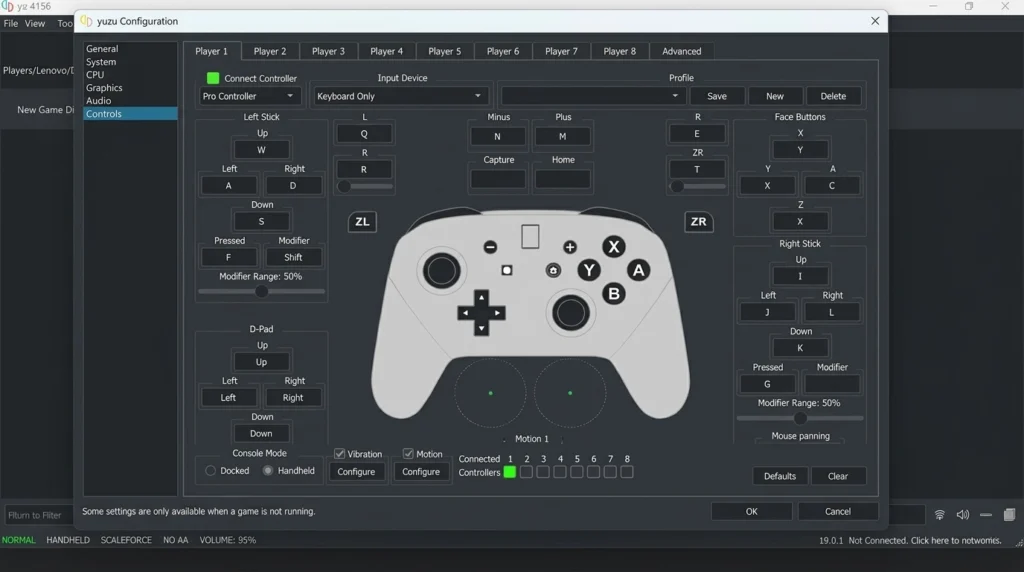
Getting the required files prepares your emulator for proper configuration. Visit your website’s Yuzu resources page for helpful guidance. Check the available version information before preparing your files. Use keys and firmware extracted from your legally owned console.
Follow these simple steps to prepare both files:
- Visit your website’s Yuzu resources page.
- Check the available keys and firmware information.
- Follow the extraction instructions for your own console.
- Save both files in an accessible computer folder.
- Verify their versions before starting the installation.
Keep both files ready for the next installation steps.
How to Install Prod Keys in Yuzu Emulator
AInstalling Prod Keys allows Yuzu to process supported game files. First, locate the extracted keys on your computer. Make sure your legally obtained file uses the correct format.
Follow these steps to configure the emulator correctly:
Restart Yuzu to apply the updated configuration.
Open Yuzu Emulator on your computer.
Select the File option from the main menu.
Choose Open Yuzu Folder from the available options.
Open the folder named keys.
Copy your legally extracted prod.keys file there.
After restarting, Yuzu should recognize the installed key file. However, compatibility depends on your emulator and key versions.
How to Install Firmware in Yuzu Emulator
Installing firmware adds necessary system components to your emulator. First, prepare firmware files extracted from your legally owned console. Make sure your files use a supported installation format.
Follow these steps to install firmware in Yuzu:
- Open Yuzu Emulator on your computer.
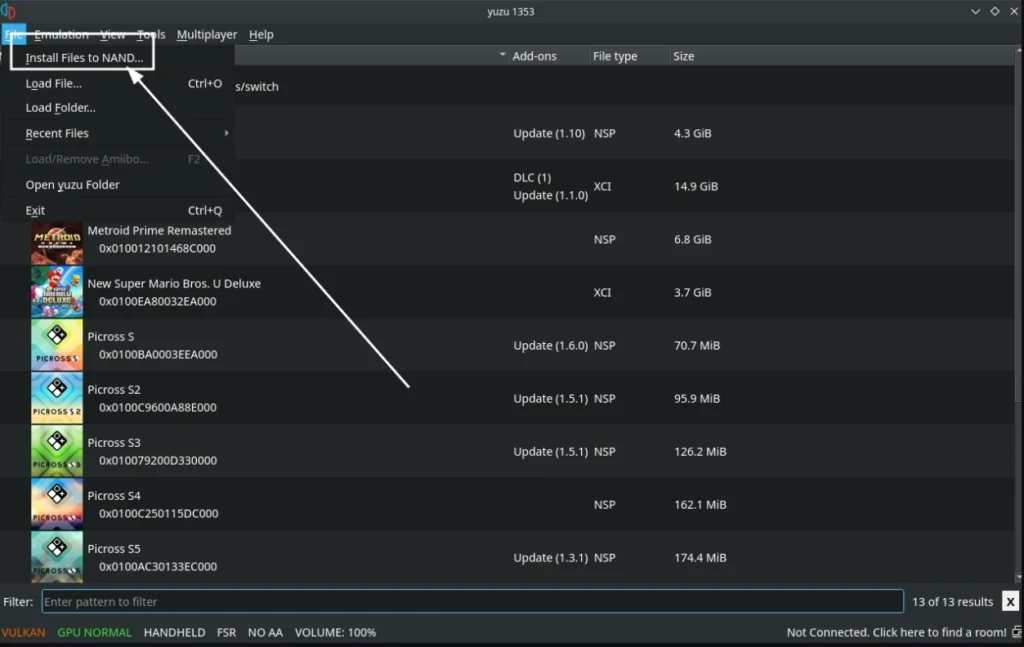
- Select File from the top navigation menu.
- Choose Install Files to NAND from the options.
- Locate your legally extracted firmware files.
- Select the appropriate firmware package for installation.
- Confirm the installation and wait until completion.
- Restart Yuzu to apply the installed firmware.
After installation, check whether Yuzu recognizes the firmware correctly. Compatible versions help prevent unnecessary startup and compatibility errors.
How to Update Yuzu Prod Keys and Firmware
Keeping emulator files updated helps maintain compatibility with supported games. However, users should check version requirements before replacing existing files. Newer files do not always guarantee better game performance.
Follow these steps when updating your existing files:
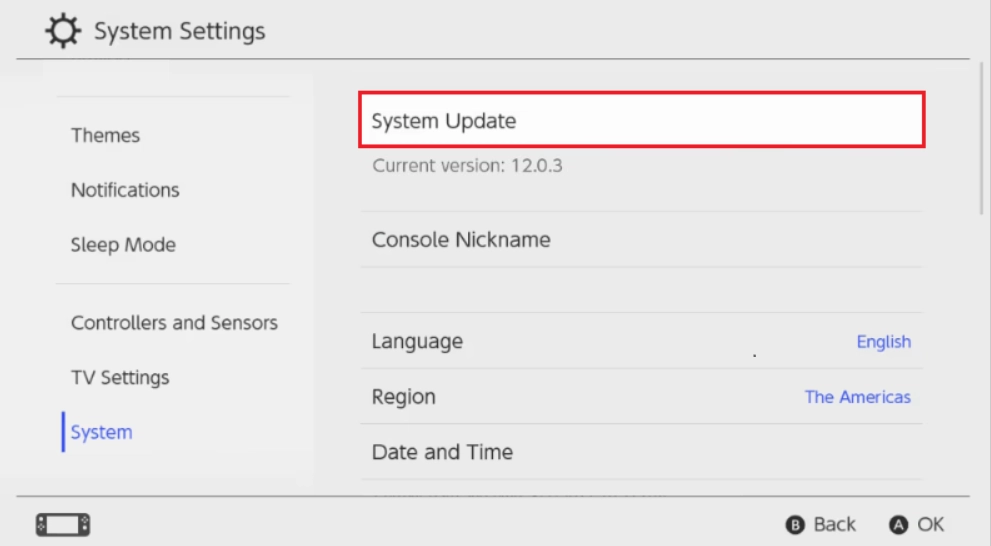
- Check your current keys and firmware versions.
- Prepare compatible files extracted from your legally owned console.
- Open the Yuzu installation folder on your computer.
- Replace outdated keys with your newly extracted version.
- Install compatible firmware through the NAND installation option.
- Restart Yuzu and check whether everything works correctly.
Always keep backup copies before replacing your existing files. This precaution helps restore previous configurations whenever problems occur.
Versions |
Firmware |
ProdKeys |
|
23.0.0 |
Coming Soon |
Coming Soon |
|
22.5.0 |
||
|
22.1.0 |
||
|
22.0.0 |
||
|
21.2.0 |
||
|
21.1.0 |
||
|
21.0.1 |
||
|
21.0.0 |
||
|
20.5.0 |
Common Yuzu Prod Keys and Firmware Errors
Users may encounter different problems while configuring Yuzu files. These issues can prevent games from starting or loading. However, identifying the cause makes troubleshooting much easier. Here are some common problems users may experience:
- Missing Prod Keys: Yuzu cannot decrypt supported game files.
- Incorrect Key Version: Older keys may cause compatibility problems.
- Missing Firmware: Certain games may fail during startup.
- Firmware Installation Failed: Incorrect packages can interrupt installation.
- Unsupported File Format: Some files may not install correctly.
- Game Loading Errors: Incompatible files can prevent successful game launching.
Always check file versions before changing emulator settings. Proper troubleshooting can help resolve many common configuration problems.
How to Fix Yuzu Keys and Firmware Issues
Fixing emulator problems starts with identifying their actual causes. First, check whether your installed files match requirements. Incorrect versions can create several unexpected errors during gameplay. Therefore, review these common solutions before changing other settings.
- Missing Keys: Place your legally extracted prod.keys file correctly.
- Firmware Errors: Reinstall compatible firmware using the NAND installation option.
- Version Problems: Check compatibility between your keys and firmware.
- Loading Issues: Restart Yuzu after making necessary file changes.
- Installation Failures: Verify your firmware package before installing it.
- Game Errors: Check individual game compatibility and emulator settings.
Additionally, keep backup copies before replacing important configuration files. These simple checks can resolve many common emulator problems. If errors continue, review your emulator’s version and configuration.
Yuzu Prod Keys and Firmware Compatibility
Compatibility depends on matching files with supported emulator versions. Different games may require different firmware and key versions. Therefore, checking compatibility prevents several avoidable installation problems.
Before configuring your emulator, consider these important points:
- Check whether your keys support the installed emulator version.
- Use firmware extracted from your legally owned Nintendo Switch.
- Avoid mixing files from different firmware releases.
- Verify game requirements before troubleshooting unexpected loading problems.
- Keep backup copies of previously working configuration files.
Furthermore, individual games may behave differently across emulator builds. Proper file selection helps maintain a more stable setup. Always review compatibility before replacing your existing files.
Frequently Asked Questions
Final Thoughts
Setting up Yuzu requires suitable keys and compatible firmware files. Understanding their functions makes emulator configuration easier for beginners. Following correct installation steps can prevent common technical problems. Moreover, checking compatibility helps users avoid unnecessary setup errors.
Always maintain backups before updating your existing emulator files. Use legally obtained files and follow responsible installation practices. Additionally, review compatibility before making important configuration changes. Proper preparation creates a smoother experience when configuring Yuzu.